
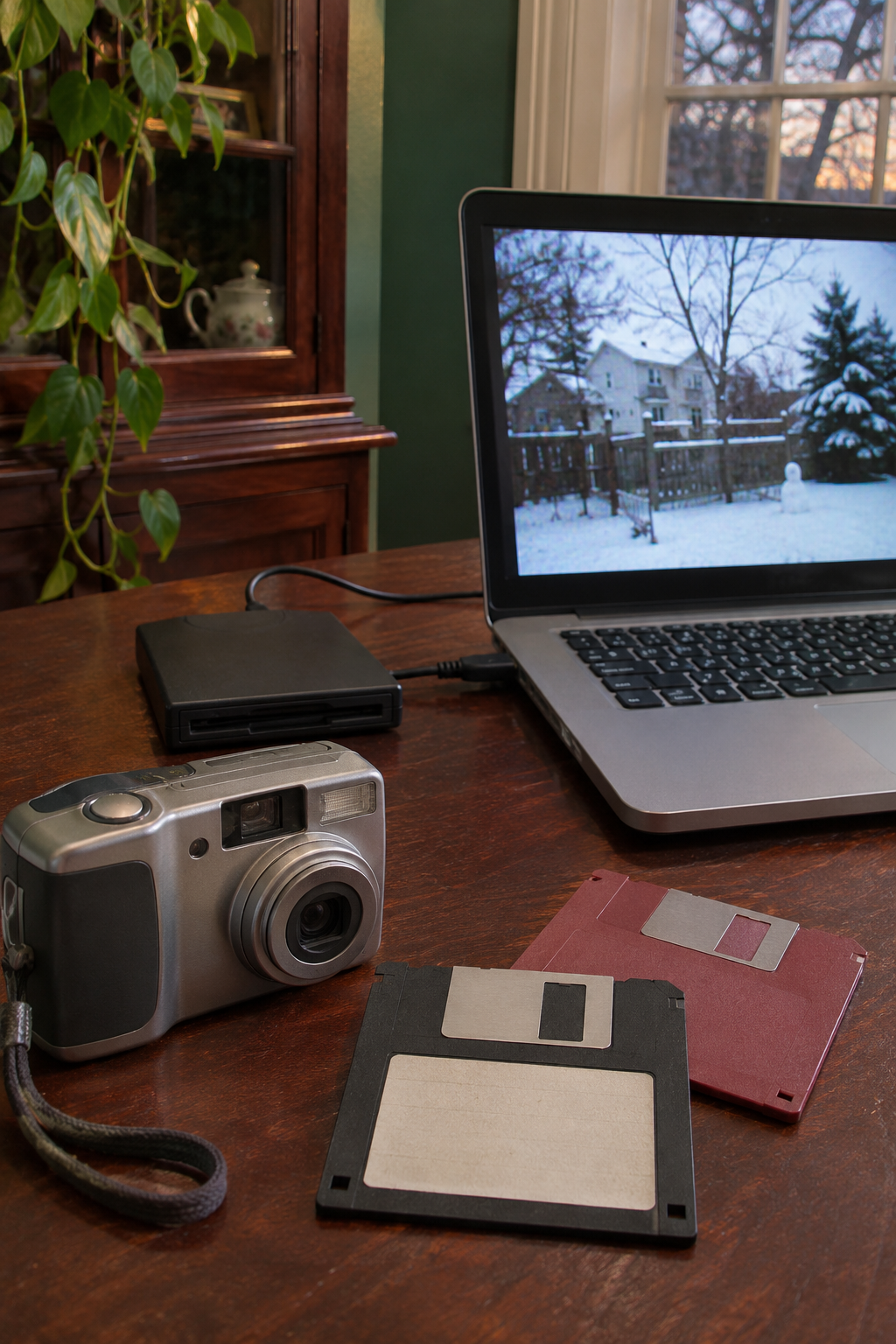
If you’ve found a stack of family photos on old Sony Digital Mavica disks, start with the camera model and the disk. The MVC-FD73 uses 3.5-inch 2HD, 1.44 MB floppies in MS-DOS format and saves still photos as JPEGs. A Windows-compatible USB floppy drive is a practical way to try reading those disks.
As an Amazon Associate I earn from qualifying purchases.
Check the format and your computer before buying
Look for a rigid square 3.5-inch disk with a sliding shutter. Then check the camera manual or the disk label for the format and capacity. The Chuanganzhuo ACM-008 USB floppy reader (paid link) is listed for 1.44 MB floppies and Windows PCs. Check the USB plug against the ports on your computer. If you use a Mac or have 720 KB floppies, choose a reader that explicitly lists your operating system and disk format.
Copy each disk to a separate folder
- Connect the USB reader and insert one disk in good condition. Open File Explorer and look for the floppy drive under This PC.
- Open the disk, locate the image files, and copy them into a new folder. Give it the disk’s label or a number. This keeps files from different disks with the same names from overwriting one another.
- Open a few JPEGs from the new folder. When you’ve checked the copies, keep a second copy somewhere separate and retain the original disks.
If Windows offers to format the disk
Choose Cancel. Try a second known-readable disk to check whether the drive can read that format. If only one disk fails or it sounds like it’s binding, set it aside. For irreplaceable photos, ask a recovery service about the disk before trying repair or format options.
See the Sony MVC-FD73 operating instructions, the FD73 recording format summary, and the ACM-008 compatibility list.